Getting started
Start with the three below. Past that, the map answers a different question depending on why you came, so pick the tab that fits.
New here? Do these three.
Everything else on this page is detail you can come back for.
- 1Look at the mapNo account neededEvery work is a dot, every arrow an influence somebody recorded and backed up. Drag it around.
- 2Join a hubAccount neededA genre, a movement, a country. It gathers its own works, and gives you a smaller corner to explore than “everything ever made”. Browsing one is open to everyone; joining is what needs the account.
- 3Answer one questionAccount neededWe show you a work with almost nothing connected to it and ask what shaped it. Skipping is the normal answer and costs nothing.
Exploring the map
The map covers books, film, television, games, tabletop, music, comics and the stage, start from whichever you care about. Everything here works as a guest, apart from your own library, which needs somewhere to keep it.
Start from a hub
A hub is a corner of the map: a genre, a movement, a country. It gathers its works automatically from what the map already knows about them, so it is never a list somebody has to maintain.
- 1
Pick one that sounds like you
Every hub says how many works it holds. Some are large and some are five works deep, which is honest rather than broken: they grow as the map does.
Browse the hubs - 2
Join it
Joining puts a hub on your profile and quietly moves its works up the lists when a page asks you what you recognise. Nothing is hidden from you either way.
- 3
Use it as a doorway
Each hub links to the same four tools the rest of the site has, already narrowed to it: the works missing influences, the connections people disagree about, recommendations, and its own figures. Every one of them offers the way back out to the whole map.
- 4
Talk in it
Hubs carry topics, with replies and polls. Arguments about one specific connection stay on that connection; a topic is for everything else.
If you only do one thing on your first visit, join a hub. It is the shortest route from “what is this” to something you actually care about.
Find what influenced your favourite work
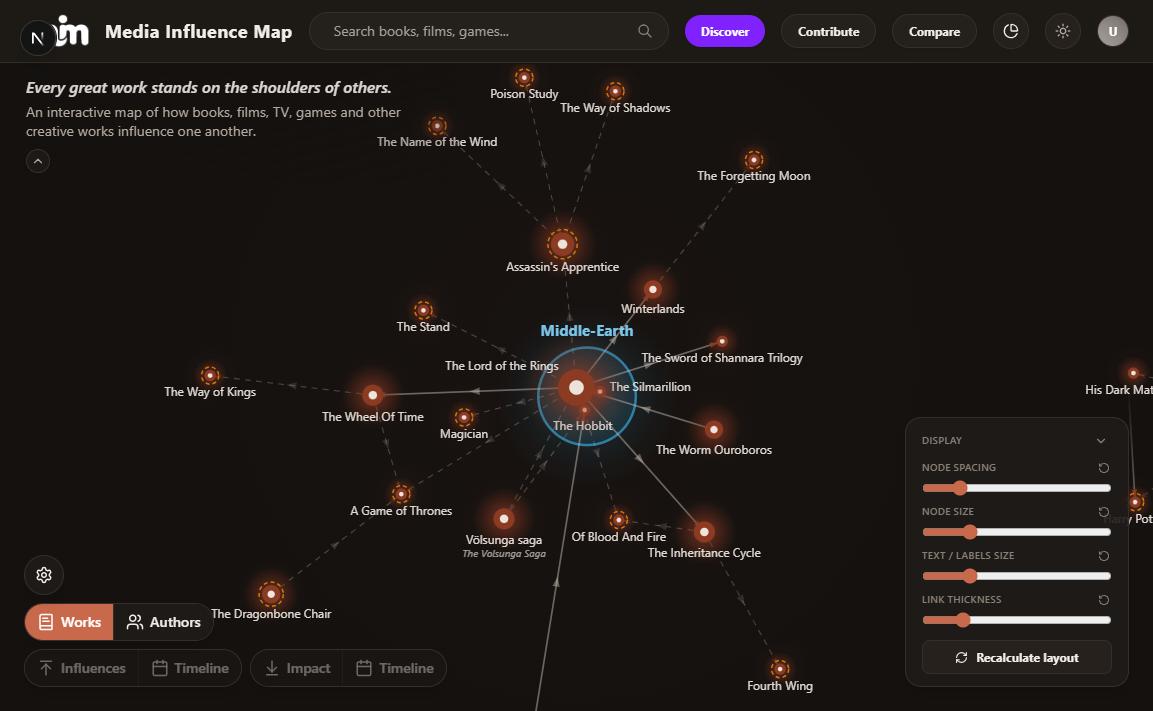
Every work on the map carries two chains: what fed into it, and what it fed. Start from the work, a novel, a film, a game, an album, and walk backwards.
- 1
Search for the work
Use the search bar at the top of the map. Entries that belong to a bigger whole resolve to it: searching a single instalment lands you on the series or franchise node, because that is where the connections hang off.
Open the map - 2
Open it and read the drawer
Clicking a node opens a panel with its details, its recorded connections, and the reasoning a moderator accepted for each one. Each connection names its kind, influence, reaction against, adaptation, remake, same universe, or a real-world influence.
- 3
Press “Influences” to light up the chain
With the work selected, the Influences pill highlights everything upstream of it, following the arrows backwards for as many steps as the record goes. “Impact” does the same in the other direction: everything the work went on to shape.
- 4
Switch on “Timeline” to see it in order
The Timeline half of the same pill isolates that chain and lays it out chronologically, so you can see how far apart the generations actually are.
- 5
Check the evidence
Any connection can be opened in the public review log, where you can see who proposed it, who approved it, the sources given, and the discussion. Nothing on the map is asserted without a trail.
Open the review log
If a work looks lonely, that usually means nobody has mapped its lineage yet, not that it has none. That is an invitation to contribute.
Prefer reading to panning? Use the pages
Every work and every creator on the map also has a plain page: the same connections, the same evidence, laid out to be read and scrolled. If the graph is hard work on your phone, this is the same content without it.
- 1
Flip the switch in the search bar
At the end of the search field there is a small half pill reading GRAPH. Tap it and it reads PAGES: from then on, choosing a result opens that work’s page instead of moving the map. Tap it again to go back. It starts on GRAPH every time.
Open the map - 2
Or jump straight from a work you already have open
The panel on the map has a purple “Open media page” button. Creators have one too, on their own panel in the Authors view.
- 3
What a page gives you that the panel cannot
Every connection rather than the strongest few, each one with its evidence in full rather than trimmed to fit a column, and links straight to the pages of the works at the other end. At the bottom sits the cover, the series it belongs to and the rest of its universe.
Pages are also the part of the site a search engine can read. The map is a canvas, so to anything that is not a person it is one blank page.
Compare two things
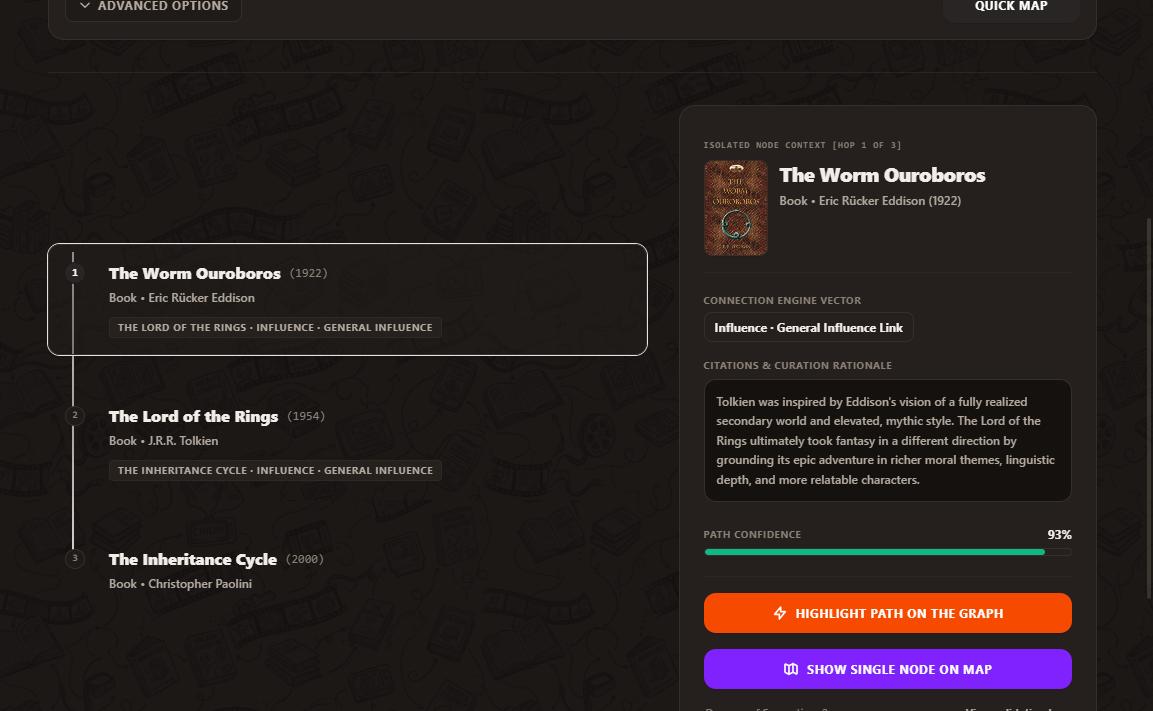
The Lineage Explorer answers a single question: what is the recorded path between these two points? A point can be a work, a creator, or a real-world influence such as a war or a mythology.
- 1
Pick a source and a target
Each picker has a Work / Author / Real world switch, and a work can be from any medium. Mixing kinds is the interesting part, a director and a video game, or “World War I” and a novel.
Open the Lineage Explorer - 2
Run a Quick map first
Quick map searches widely: up to eight hops, every connection type, in either direction. It answers “is there a path at all?” before you start tuning anything.
- 3
Then narrow it with Advanced options
Advanced lets you cap the hops, ask for several alternative routes, restrict which connection types may be traversed, and force the direction to A → B only. Fewer types and fewer hops means a stricter, more defensible claim.
- 4
Turn on “Accept common influences”
Two works often have no path between them but share an ancestor. This option finds that shared source and marks it as the junction, usually a more honest answer than a long chain.
- 5
Read the confidence bar, not just the path
Confidence combines how well-supported each link on the route is with how important a moderator judged it. A long route through lightly-supported links scores low, and it should.
- 6
Send the route back to the map
“Highlight path on the graph” carries the whole route over to the main map so you can see it in context among everything else.
A path is a record of what has been documented, not a claim that one work caused another. Short and well-supported beats long and clever.
Read creative flows better
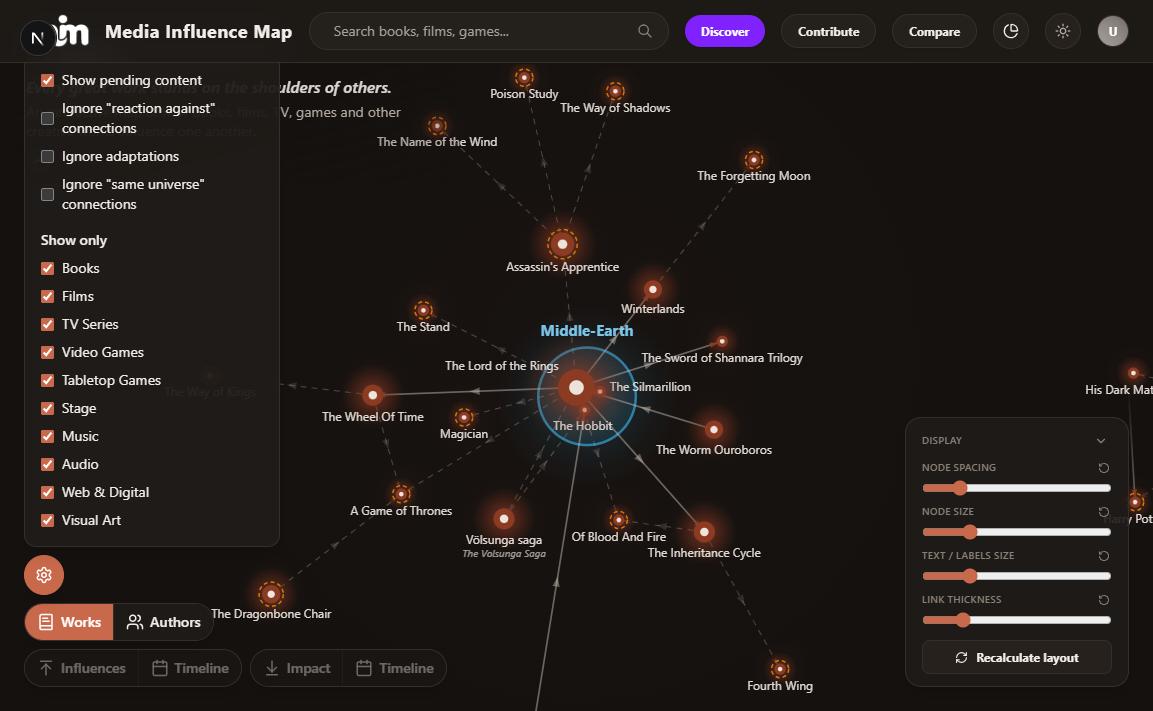
The map is not a ranking. Reading it well is mostly about knowing what each visual signal is telling you.
- 1
Arrows carry direction
An arrow points from the source of an influence to the work it shaped. Follow them forwards to trace descendants, backwards to trace ancestry.
- 2
Line weight carries importance
Connections are weighted low, medium or high, a minor background echo versus a defining, structural debt. Two works can both be “influences” and mean very different things.
- 3
Clusters carry shared canon
A halo around a group of nodes is a universe: works a moderator has confirmed share the same canon. Clusters read as one creative body rather than as separate points.
- 4
Ring nodes carry the real world
The category nodes on the outer rim, History, Mythology & Folklore, Science & Technology and the rest, are where non-fictional influence enters. Each link to one names the specific event, myth or idea involved.
- 5
Switch to the Authors view
The Works ⇄ Authors toggle projects the same graph onto people: one node per creator, with the connections between their works aggregated. Generational patterns that are invisible work-by-work show up immediately.
Open the Authors view - 6
Use the filters to remove noise
The cogwheel hides whole media types, so you can read the map as books alone, or films alone. It also shows pending connections, which are drawn dashed and have not been reviewed yet.
- 7
Let Discover pick for you
If you have no particular work in mind, Discover surfaces works and connections worth looking at, which is usually a better entry point than a blank search box.
Open Discover
Density means attention, not quality. A heavily-connected node is one that many people have taken the trouble to map, often a canonical work, sometimes just a popular one.
Keep a library of what you have read
My library is a shelf of the works you have read, watched or played. It is the only part of the site that is about you rather than about the map, and it quietly makes the rest of it more useful.
- 1
Add a work with the bookmark
Open any work on the map and press the bookmark beside the follow bell. You can also add from the shelf itself, using the + on the first empty card.
Open my library - 2
Read what your shelf says about you
The panel at the top of the shelf reads the collection back to you: the classicist, the completist, the omnivore and a few others. It always names what produced the verdict, so you can disagree with the evidence, and it refuses to guess from a handful of works.
- 3
Discover skips what you already know
With a shelf in place, Discover leaves out works already on it, so every suggestion is something new. The switch is on by default and sits at the last step, with a link back to your shelf.
Open Discover - 4
Keep a wishlist too
The heart beside the bookmark puts a work on your wishlist instead: the things you have not got to yet. A work sits on one list or the other, so hearting something you have shelved moves it. Your wishlist is private unless you make a share link for it, and making it private again retires that link.
Open my library - 5
Decide who can see it
Your shelf appears on your profile when someone opens it. One setting keeps it private, on the shelf page itself as well as in your profile settings. A private shelf is invisible rather than locked: nobody is told there is something they cannot see.
Nothing you shelve changes the map or what anyone else sees. It is a record of your own reading, and the only thing it feeds is your own suggestions.
Adding to the map
Contributions need an account, and everything you submit is reviewed in public before it lands on the graph.
Start small, and it counts
You do not need to write anything to be useful. A moderator deciding a claim is reading the community signal, and one honest press is a real contribution.
- 1
Support a connection you agree with
Open any connection on the map or in the review log and press Support. It says the claim matches what you know. Supporting an existing connection is also the right move when you were about to add the same one. A second identical edge splits the evidence instead of strengthening it.
Open the review log - 2
Report one that looks wrong
Same place, opposite button. Report a connection that is backwards, based on a coincidence, or simply mistaken. Reports are not accusations; they are the fastest way for a moderator to find out something slipped through.
- 3
Flag a mistake on a node
Wrong year, wrong author, a work filed under the wrong medium, a duplicate that should be merged into an existing node: flag it from the work’s drawer. Small metadata errors are what make a graph feel untrustworthy, and they are the easiest thing to fix.
- 4
Check the review log now and then
New claims sit there waiting for exactly this. Ten minutes of reading the queue does more for the map than most single submissions, and you will see how connections are argued before you write your own.
See what needs review - 5
Comment when you know something
If a connection is disputed and you have the interview, the essay or the passage that settles it, add it to the discussion on that edge. A source in a comment is often what turns a stuck claim into a decision, and it stays attached as provenance afterwards.
None of this needs expertise in anything except the works you already know well.
How to contribute
There are two things you can add: a work that is missing, and a connection between two works. Connections are the valuable part, works without connections are just a catalogue.
- 1
Search before you add
Most well-known works are already on the map, sometimes under an original-language title or folded into a series or franchise. Adding a duplicate creates work for moderators and splits the connections that should have accumulated on one node.
Search the map - 2
Add a missing work
Give it a media type, a year, its creators, and at least one reference link a moderator can verify, Wikidata, Wikipedia, or an authoritative source site. Books can additionally be looked up by title, which fills most fields for you; other media are entered by hand.
Add a work - 3
Propose a connection
Pick the two works, choose the kind of connection, set how important the influence was, and, this is the part that matters, write down why, with a source. A moderator is reading that reasoning, not guessing at your intent.
Add a connection - 4
Lay the evidence out
The description and evidence fields take formatting: select any text and use the bold, italic and bullet buttons above the box. Three sources read as three lines rather than one paragraph, and that is what a moderator is working from.
- 5
Respect chronology
A work cannot be influenced by something that came after it. This is checked, and it is the single most common reason a submission is rejected.
- 6
Support existing connections instead of duplicating them
If the connection you had in mind already exists, back it. Support votes are how the community says “yes, this is real”, and they feed directly into the confidence scores shown everywhere else.
- 7
Add real-world influences too
A war, a scientific discovery, a mythology or a personal experience can be linked to a work through the real-world categories. Pick the category, then name the specific influence, “World War I”, not just “History”.
- 8
Follow your submission through review
Everything sits in the public review log while it is pending. You can edit or withdraw your own pending submissions, and you will be notified when a moderator acts on one.
Open the review log
The full policy, what gets accepted, what gets flagged, and how disputes are handled, is written out on the contribution principles page.
Four ways in, not one
Adding a connection from a blank form is the hardest way to start. The contribution centre offers three easier ones.
- 1
Answer a single question
Find missing influences shows you one work with almost nothing attached and asks what shaped it. Skip anything you do not know: that is the normal answer and it costs nothing.
Try it - 2
Give a second opinion
Needs a second opinion shows one connection at a time, with its evidence, and asks whether it holds up. Some are argued over, most have simply never been read by anyone.
See what needs eyes - 3
Just read what people are adding
The feed under the contribution centre is every approved connection, newest first, as a scrollable list. You can filter it to the works you follow or have on your shelf.
Open the contribution centre
All three work on a phone, and none of them needs you to think of a work first.
What makes a contribution get approved
Moderators are looking for the same few things every time.
- 1
A source that says it, not a resemblance you noticed
An interview, a director’s commentary, a designer’s postmortem, a documented statement, a scholarly reference. “Both have dragons” is a genre observation, not an influence.
- 2
The right kind of connection
An adaptation is not an influence, and neither is a shared universe. A remake is the same-medium cousin of an adaptation: a film redone as a film. Using the precise kind keeps the graph readable and keeps the statistics honest.
- 3
An honest weight
Reserve “high” for influences a work could not have existed without. If everything is defining, nothing is.
- 4
Specificity
Naming the kind of influence, narrative, visual, thematic, mechanical, foundational, makes the connection far more useful to anyone reading it later.
Rejections are recorded with a reason, and a rejected submission can be corrected and restored rather than lost. Anything still rejected after thirty days is cleared out.
Using the data
The statistics are computed from the approved graph on a daily schedule, and served from a snapshot, so the numbers you see are stable and citable within the day.
Which statistics are actually useful
The dashboard is grouped by the question each metric answers.
- 1
Global data volume: how much is mapped
Approved works, approved influence connections, canonical authors, contributors, and the average number of connections per work. Read this first: every other number on the page is conditioned on it, and a thin graph makes thin claims.
Open the statistics - 2
Media presence: what the graph is made of
The share of the graph held by each medium and how it has grown by year. Useful for spotting coverage bias before drawing a conclusion about culture rather than about the dataset.
- 3
Direct influence spread: how fast ideas travel
The median gap, in years, between a work and the works it directly influenced. Available as a median and as a mean; the gap between the two tells you how skewed the distribution is.
- 4
Indirect and extended spread: how far ideas travel
The same measurement over chains of up to two and up to five connections. Comparing the three shows whether a work’s influence dissipated quickly or kept propagating through later generations.
- 5
Normalised entropy and consensus: how contested a claim is
Per work, the balance of support against reports across its connections, expressed as a binary Shannon entropy in the 0–1 range; consensus is its complement. High entropy marks the works people genuinely disagree about, often the most interesting cases.
- 6
Demographic distributions: who is represented
Country and gender distributions for both mapped authors and contributors, as counts only. The two together are the honest way to read the map: the shape of the record reflects the people building it.
Every metric definition lives next to the code that computes it, so a number you cite can be traced to how it was derived.
How to access them
Three routes out, depending on what you need.
- 1
The dashboard
Every chart supports filtering by medium, so you can restrict a metric to books or to film before reading it. This is the fastest route for an eyeball answer.
Open the statistics - 2
The public statistics endpoint
A plain GET to /api/statistics returns the whole dashboard payload as JSON, including a computedAt timestamp so you can record exactly which snapshot you used. No key, no account. It is a single cached row, so it is safe to call from a notebook.
View the JSON payload - 3
The review log, for provenance
If you need to defend an individual connection rather than an aggregate, the review log carries the proposer, the moderator, the sources and the discussion for every edge on the graph. It is filterable by connection.
Open the review log
Please cite the computedAt timestamp alongside any figure, the graph grows daily, and the same metric will move.
Reading the data honestly
Three caveats worth stating in any write-up that uses this data.
- 1
It is a record of documented influence, not of influence
An unmapped connection is indistinguishable here from one that does not exist. Absence is never evidence.
- 2
Coverage is uneven and contributor-driven
The graph is denser where its contributors read, watch and play. Check the media presence and demographic charts before generalising.
- 3
Only approved content counts
Every statistic is computed over approved works and approved connections. Pending submissions are visible on the map behind a filter, but they are deliberately excluded from every number.
Collaborate
The dashboard covers the questions we knew to ask. If yours needs something else, ask us.
- 1
Need a cut we do not publish?
If you need a metric the dashboard does not show, a slice of the graph in a particular shape, or a snapshot fixed at a moment in time so your results stay reproducible, get in touch through the contact form below. Tell us what you are trying to measure rather than what query you think you need. It is usually faster for us to answer the underlying question.
- 2
Working on something?
We are genuinely glad to hear from people using this in research, teaching or journalism, and open to collaborating where it makes sense, including on questions that would improve the dataset for everyone. Say what you are working on and we will reply.
No formal process and no fee. A short message describing the work is enough to start.
Still stuck?
The support page has the FAQ, and a form that reaches a human.